Features
Calandria runs many coding-agent sessions in parallel, each as its own task with its own git worktree, branch, and transcript. This page is the detailed feature reference; the README has the quick overview.
Running tasks in parallel
What it is: every task runs in its own git worktree and branch, with its own Claude Code, Codex, or Antigravity session. Tasks in the same or different projects never share files, terminals, or transcripts.
How to use it:
- Create a task from a project. Calandria cuts a fresh worktree and branch for it before the first turn starts.
- Watch the Work Center pill for any task, in any project, that is waiting on you: the titlebar pill, the Work Center list it opens, the project badge, and the board’s Needs input column all show it.
- Send a message to a task while its turn is still running. It queues and sends once the current turn ends.
- Reload the page, close the tab, or let your laptop sleep. Turns run on the server and every event is saved as it happens, so the transcript is exactly where you left it.
- Hover a fenced code block anywhere a message renders and click the copy button in its top right corner to put the block’s source on your clipboard. The button is reachable from the keyboard, and stays visible on a touch screen that has no hover.
- A
```mermaidfence in a message renders as a diagram once the message is complete. While the agent is still typing it, the fence shows as code.
Project context and long conversations
What it is: a project can carry reusable context that every new task starts with, and a task’s conversation can be condensed and continued indefinitely instead of growing into one unbounded prompt.
How to use it:
- Click Context at the top of a project’s task list to open the Project context dialog.
- Write or paste background the agent should know for every task in this project (stack, conventions, constraints).
- Click Refresh with AI to have the agent read the repository and redraft that context for you. Click Preview first to render the current context instead of editing it.
- Uncheck Include this context in new agent sessions to stop sending it to new tasks in this project. Each task can override this: uncheck Send saved project context to the agent in the New task dialog to opt that one task out on its own.
- Type
/clearin a running task’s composer to end the current session, summarize it, and start a fresh context window seeded with that summary. A task is a lineage of sessions this way: each/clearstarts the next generation seeded with every prior summary. - Type
/in the composer to open the command menu. It lists the commands your skills, your plugins, and the.claude/commandsin the checked-out repo actually expand, read live from the agent, so installing a command makes it appear with no Calandria update needed. An MCP server’s prompts (/mcp__server__prompt) appear too, once the task has run at least one turn. Arrow keys move the highlight, Enter or Tab completes it, and typing a command in full sends it as usual.
What it does not do:
- The command menu hides the agent’s own
/clearin favor of Calandria’s, and hides the run-control commands (/model,/effort,/fast), which have their own pickers instead. - An MCP server’s prompts cannot be listed until the task has run at least one turn, because reading them without spawning your whole MCP fleet isn’t possible before that.
Reviewing and merging changes
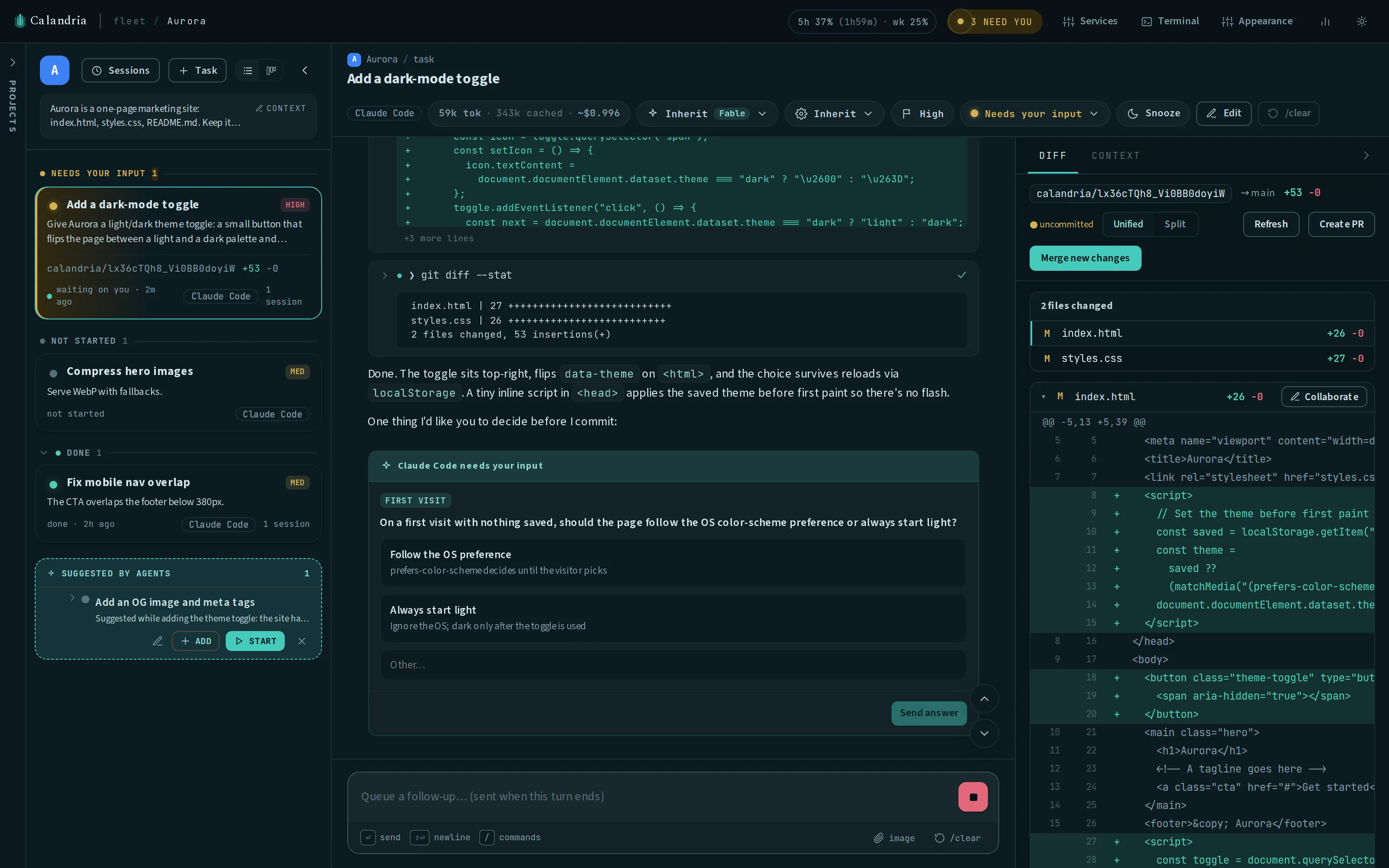
What it is: the Changes tab puts the task’s git diff beside its conversation, so you can review, sync, merge, or open a pull request without leaving the app.
How to use it:
- Open a task and switch to the Changes tab (part of the DIFF / PREVIEW / CONTEXT rail) to review every changed file next to the session that produced it.
- Use the tab’s buttons to sync a stale task branch, merge with one click, ask the agent to resolve conflicts, create a GitHub pull request, or squash-merge that pull request.
Once a task has a PR, the diff view’s toolbar shows a live chip: the PR number, whether it is
open, merged, or closed, how its checks are doing, and the review decision. Calandria refreshes
it in the background (running gh pr view) when the PR is created, when you open the task, when
you press the chip’s Refresh button, and on a timer while the PR stays open. A merged or
closed PR is never re-read.
| Setting | Default | Effect |
|---|---|---|
CALANDRIA_PR_POLL_MS | 300000 (5 min) | How often an open PR’s chip refreshes on a timer. Set to 0 to turn the timer off; the other three refresh triggers still fire. |
If a task’s open PR starts failing its checks, the task is raised into the same Needs you inbox a parked question uses, even if no turn is running and the task is already marked done. A snooze silences it like anything else in that inbox, and it clears when the PR merges or closes. The session’s own transcript names which check broke and links its run.
Beside that, Fix CI re-checks GitHub, reads the tail of the failing job’s log with
gh run view --log-failed, and starts a turn in the task’s own session with both. The fix
streams into the transcript like any other work.
| Setting | Default | Effect |
|---|---|---|
CALANDRIA_CI_LOG_TAIL_LINES | 200 | How many lines of the failing job’s log Fix CI reads into the prompt. |
Squash and merge from the rail
What it is: once a PR is open, green, and approved, one button lands it.
How to use it:
- Click Squash & merge PR on the diff rail. It runs
gh pr merge --squash --auto --delete-branchthrough the sameghlogin the Create PR button uses. - If the repository has auto-merge enabled and required checks configured, the click queues the merge: GitHub lands it the moment CI goes green, and the result tells you it is queued, not yet merged.
- Otherwise it falls back to a plain squash merge immediately.
The button reflects GitHub’s own answer, not an optimistic guess: it is disabled, with a reason
shown, when the PR is a draft, already merged, closed, conflicting with its base, or has failing
checks. A PR only waiting on a required review or a still-running check stays clickable, since
that is what --auto is for. Calandria re-checks the PR against GitHub right before merging, so
a build that went red while you had the tab open is refused, not merged, and the button also
refuses while the task has a turn running, since the agent may still be pushing commits.
What it does not do:
- Only the local branch is removed.
--delete-branchremoves the branch on GitHub; the task’s own local branch stays until you reclaim the worktree. - Merging is a user action and only a user action. There is no agent tool or scheduled path for it.
Reclaiming the worktree when the work lands
What it is: once a task’s work has landed, whether GitHub merged the pull request or Calandria merged the branch locally, its checkout is disposable and Calandria can clean it up.
How to use it:
- Click Reclaim in the session header once it appears (it shows up the moment the work lands). It fast-forwards the local base branch from origin, removes the worktree, deletes the local branch, and marks the task done in one step.
- To do this automatically for every task in a project, open Context → check Reclaim a
task’s worktree when its work lands. It is off by default and set per project. A landed task is
closed and reclaimed as soon as no turn is executing. If a turn is active, reclaim waits for its
turn_endevent. Dirty or never-pushed work remains for manual acknowledgement. - To reclaim several merged or finished tasks at once, go to Settings → Storage. Discarding unmerged work there requires the same explicit permanent-discard confirmation as the button.
What it does not do:
- It never discards anything silently. Uncommitted edits in the checkout, or commits the remote never received, stop both the button and the automatic path. The automatic path just reports and leaves the checkout alone; the button, and Settings → Storage, offer the same permanent-discard confirmation a task move does, naming exactly what would be destroyed.
- It never takes a branch out from under a session you are still using. If something does remove a task’s branch, a project move or a reclaim you asked for, the next turn cuts a fresh one and says so on the transcript, naming the new branch and where the old commits went.
- A branch that is merely “ahead” of its base after a squash merge is not treated as unsaved work, since every squash-merged branch looks that way.
- The remote branch is deleted only if the merge came from Calandria (
--delete-branch) or the repository hasdelete_branch_on_mergeturned on; GitHub does not enable that by default.
Collaborating on a document
What it is: a way to read and edit a text file the agent wrote or changed, with inline comments, without opening it in your own editor.
How to use it:
- Click Collaborate wherever it appears: on a changed file’s diff header in the Changes tab, or on the Write/Edit tool card in the transcript. It shows up as soon as the file is written, even under a gitignored directory that never appears in the diff. A markdown link to a file in the checkout, in a message or in an open document, opens it the same way; a link to an image opens it in a new tab.
- Use the Edit tab to edit the file directly in a source editor. Markdown gets a live
render beside it, and
```mermaidfences render as diagrams. - Use the Comment tab to select a passage and attach a note, or leave a general comment.
- Click Send to agent to turn your edits into a unified diff (or write them straight into the worktree, which is the default) and your comments into located, quoted feedback, sent as one message through the ordinary chat.
Passage comments, the edit, and the general note all save as you go and come back when you reopen the document; an unsent comment can still be edited up until you send it. Sent comments stay listed against the document, read-only, and move into an outdated group once the document changes further. An edit made against an older version of the file comes back as stale, with a choice to restore it or discard it, instead of being reapplied silently. See Collaborating on a document for the full reference.
Base branches
What it is: each task can target its own base branch instead of the project’s default, so different tasks in the same project can build against different branches.
How to use it:
- Open a task’s edit dialog and set Base branch. Leave it empty to follow the project’s default; the inherited value shows as a placeholder so you can see it without typing it.
- Name any local branch, or one that only exists on the remote: Calandria creates a local
branch tracking it. A branch checked out in another worktree (including another task’s own
calandria/…branch) is refused, and the refusal names which worktree holds it, because merging into it would move a ref that worktree’s session is still pointed at. - To set the base for a whole group of tasks at once, expand a tag’s chip and fill in Base branch in its Edit form. Every task carrying that tag from then on is cut from that branch. The form shows how many members are already past their worktree cut (they keep their existing branch) and how many take their base from a different tag.
If a task carries several tags and more than one sets a base branch, the first tag on the task, the one starred in the task’s Edit form Tags field, wins, and the tag strip names it. Resolution order is: the task’s own base branch, then the first of its tags that sets one, then the project’s default. Moving a task to another project clears both, since a branch name does not carry over to a different repository.
Retargeting a task:
- A task that has not committed yet is re-cut from the new base, so it starts fully caught up.
- A task that has already committed keeps every commit and shows how far behind the new base it now is; run Sync to catch it up.
- Once a task’s worktree is cut, the branch it forked from is recorded on the task, so retargeting later cannot move its merge target out from under work already built on it. Retargeting never rewrites history.
Tasks on a base of their own are badged in the task list and the Changes tab; tasks following the project default are not badged.
Keeping a tag’s branch current:
- The tag strip shows when its branch has fallen behind the default, for example “3 behind main”, with a Sync button beside it. The comparison is made against the commit a new task would actually be cut from (the fetched remote tip, when your local default is merely behind it), so a stale local checkout cannot hide the drift.
- Sync merges the default into the tag’s branch. It never resets the branch, since a merge cannot drop a commit and a reset would force-move a ref a live session may have checked out. If a worktree is holding the branch, the merge runs inside it so its files move too, and it is refused outright if that worktree has uncommitted work, naming it. A conflict is reported and nothing changes.
- If a tag’s branch does not exist yet, the strip says so and offers Create from main, which creates it at the commit a new task would otherwise have been cut from. A branch that exists only on the remote counts as existing and gets a local tracking ref the way a task cut would give it one.
Every session’s opening context states its resolved base branch and what Sync and Merge
will do with it, plus the project’s default when the two differ. If a task’s worktree was cut
from a base already behind the default, or from a base branch that no longer exists, the session
is told this in that same context before it writes a pull request. When there is no resolvable
base branch at all, the worktree cut falls back to whatever HEAD pointed at, and the session’s
opening context says so.
How work lands: merge or pull request
What it is: a per-project setting for how finished work is meant to reach the base branch, because a protected branch rejects a direct merge.
How to use it:
-
Open a project’s Context dialog and choose How work lands:
Option Effect Merge (default) Calandria merges the finished task branch into the base branch itself. Pull request The base branch is protected; finishing a task means opening a PR against it and leaving it for review. -
Click Detect to have Calandria ask GitHub which one applies, by reading both a branch ruleset with a
pull_requestrule and classic branch protection (neither reports the other). It also runs on its own when you open the dialog and when you create or clone a project. Detection only proposes an answer: on an existing project it shows what GitHub said beside a one-click Use pull request, without overwriting your existing choice. When GitHub cannot be reached, or the repository is private to a loginghdoes not have, Detect says so instead of guessing Merge.
Every session is told the setting as plain instructions: under Merge it reads “Merge lands into it”; under Pull request it is told the branch is protected, that Merge will be rejected, and that finishing means opening a PR. The Changes tab’s buttons follow the setting too: under Pull request, Create PR becomes the primary action and opens an editable title field with an optional Conventional Commit format hint. Merge is relabeled Merge locally…, whose first click opens a note explaining that a local merge only moves the branch in your own checkout and can never be pushed, instead of merging outright. The Push to origin offer that follows an ordinary merge is replaced under Pull request by a line saying the merge was local only, and the push route itself refuses the push server-side with the same message.
A protected-branch rejection from GitHub is recognized even when the project’s own setting says
otherwise, and reported as: “main requires a pull request, open a PR instead,” with GitHub’s
own GH006 text underneath.
Under Pull request, the task’s session also gets a tool: create_pr(title?, body?)
commits the worktree, pushes the work branch, and runs gh pr create, the same operation the
Create PR button runs. Calling it again after more work updates the same PR instead of opening a
second one. It is registered only on a project set to Pull request; on a Merge project
there is nothing for it to open, so it is absent instead of present and refusing. There is no
merge_pr tool: opening a PR is available to agents, merging is not.
If a session opens a PR by hand instead (falling back to git push and gh pr create in a
terminal, which can happen if create_pr is cut off before it reaches Calandria), Calandria
still links it to the task: at the end of every turn on a Pull request project, if the task
has a pushed work branch and no linked PR yet, Calandria checks
gh pr list --head <branch> --state open and records a match the same way create_pr would.
This check is best-effort: it costs nothing for a task that never pushed, never adopts a PR
whose head is a different branch, and is skipped entirely when gh is missing, logged out, or
offline.
Agents can also retarget a base branch directly: set_base_branch(branch, task?) defaults to
the calling session’s own task, or names any other task in the project, and runs the same
retarget the edit dialog does (with the same refusals). Retargeting another task shows on the
board as an agent change with a one-click revert. update_tag(tag, {name?, description?, color?, base_branch?}) edits a tag’s own fields, separately from a task’s tags list; there
is no tool to delete a tag, since deleting is a manual, hard-delete action with no undo.
report_base_rewrite(branch?) is the last step of a task that lands an integration branch.
A task that rebases a branch and force-pushes it leaves every other task cut from that branch
pinned to commits that no longer exist. This tool names the branch that was rewritten (defaulting
to the calling task’s own base) and flags each affected task with a Base rewritten chip on
the board plus the exact git rebase --onto line in its transcript. It rebases nothing: each
flagged task runs its own rebase from its own sync banner, where uncommitted work and an open
pull request are decided by whoever owns that task. Every task it names is verified against git
first, so a branch that only moved forward flags nobody, and the chip clears itself the moment
that task’s cut point is reachable from the base again. See
docs/design/specs/2026-09-09-landing-task-catch-up.md.
Staying level with the remote
What it is: Calandria fetches the base branch on its own so a new task is cut from the real remote tip, but it never moves your own checkout without asking.
How to use it:
-
Calandria fetches the base branch (best-effort) when you open a project and again before cutting a new task’s worktree.
-
When your local base branch is behind the remote, the project header offers a one-click fast-forward. When it is ahead, it offers a push. When the two have diverged, it tells you and leaves the resolution to you.
-
After a merge lands, the same push offer appears inline, except on a Pull request project, where it can only be rejected (there is nothing to push, since the merge was local only).
-
Set
CALANDRIA_GIT_FETCH=offto keep an instance entirely offline. -
If the commit a task was cut from is no longer reachable from its base branch (something rebased, amended or force-pushed the base underneath it), Sync would merge the pre-rewrite and post-rewrite copies of the same commits and conflict in every file the rewrite touched, so the banner offers Rebase instead:
git rebase --ontoreplays the task’s own commits onto the new tip. It refuses over uncommitted changes, since a rebase rewrites what it finds committed. -
With an open Pull request, the first click only explains that rebasing makes the branch non-fast-forward; the button becomes Rebase anyway, and the second click runs the rebase locally and prints the
git push --force-with-leaseline that would update the PR, since Calandria never force-pushes for you. -
A replay that stops on a conflict behaves like a paused merge: Fix with AI, then Finish rebase, or Discard rebase to put the branch back where it started. On a Pull request project the last step reads Accept resolution instead, since landing the rebase on the base branch is still done by pushing it yourself through Create PR or Update PR.
| Setting | Default | Effect |
|---|---|---|
CALANDRIA_GIT_FETCH | on | Set to off to disable all network git (fetch, push, PR creation) for the instance. |
When the base branch advances while a task’s merge is pending, the sync banner tells you the base moved. If syncing conflicts:
- Click Fix with AI to run a resolution turn that edits the files with no conflict markers left in them, but does not commit, so the merge stays paused for you to review.
- Once that turn ends, the banner reads “conflicts resolved” and offers Accept & merge (the same action as the Changes tab’s Merge button) and Review, which opens the Changes tab first. Discard returns the worktree to where it was. Only Accept or Discard clears the banner.
- If the agent leaves some files still conflicted, the banner counts them and offers another pass.
Resolving conflicts always merges the base into the task branch, on either landing setting. On a Pull request project the button instead reads Accept resolution and stops once the merge is committed to the task branch; the task is not marked merged, since landing it on the base is then done by pushing the branch through Create PR or Update PR.
If the merge needs to run inside your own checked-out branch, git requires a clean tree. If it
is not clean, the merge is refused and the card shows git status for that checkout. Clear it in
a terminal and merge again, or click Stash N files & merge: exactly the files shown are
stashed, the merge runs, and the stash reapplies on top. Only files present when the card was
drawn are stashed. If reapplying the stash conflicts, the stash is kept and the card prints the
git stash apply command to recover it. Merges into any other branch never touch your own
checkout.
Planning and orchestration
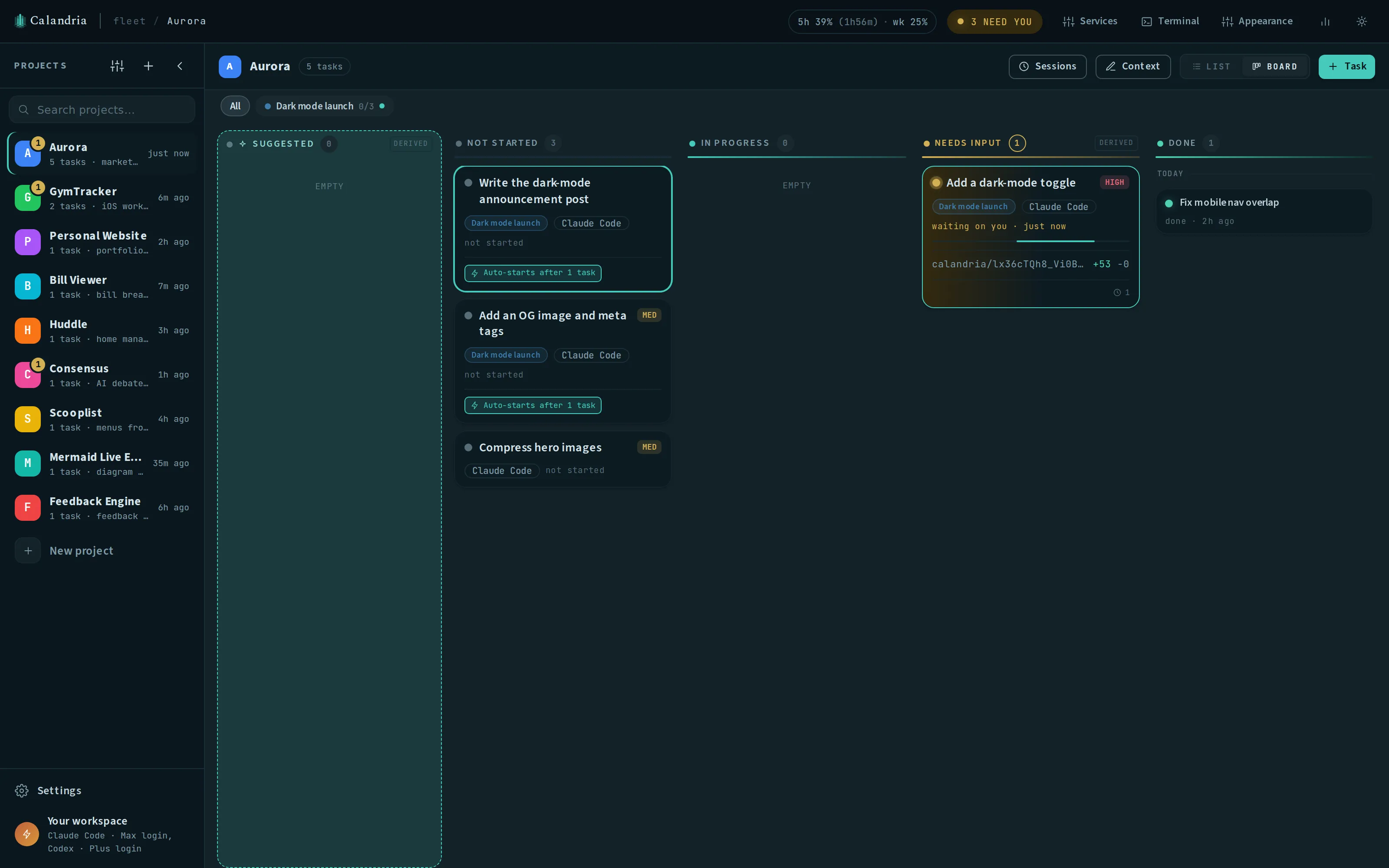
What it is: a list or kanban board of every task in a project, with dependencies between tasks and automatic ordering.
How to use it:
- Switch between a compact list and a full-width kanban board. The board’s columns are Suggested, Not started, In progress, Needs input, Ran clean, Snoozed, and Done.
- In the list, click any group header to fold that group away. Each group remembers its own state per project, across reloads. Cancelled starts folded; the rest start open. A search opens every group that has a match in it.
- Set which tasks a task depends on from its edit dialog’s dependency picker (the Blocked by field). Once every blocker is marked done, an opted-in task starts on its own.
- Opt a blocked task in from its own start screen: its “Blocked until …” notice carries a Start when unblocked button, and once queued, that notice carries Cancel to hand the start back to you.
What it does not do:
- The block is enforced by the server on the start itself, not only by a disabled button, but only for a task’s first turn; blockers order starts, not conversations.
- A blocker does not have to be a task you have accepted yet. An agent that files a plan can set
dependencies on tasks still sitting in the Suggested tray; the “Blocked until …” chip names
such a blocker with
(suggested), and the server honors it for auto-start the same as any other blocker. The dependency picker lists those with a Suggested tag, and you can accept them from the tray in order or untick them to start now. The picker will not offer a suggestion you have not already linked, since that would be waiting on work nobody has agreed to do. - Every group in the list, every board column, and the Suggested tray sort by most recently active first (created, edited, or worked on). There is no manual drag-to-reorder; dragging a card between board columns changes its status instead.
Tags
What it is: a named, project-scoped label for grouping the tasks that make up one feature, migration, or refactor. A tag has no session, worktree, or status of its own; its progress is computed from its tasks every time you view it.
How to use it:
- In New task or Edit task, pick tags from the Tags field, above Blocked by. Click New tag… to mint one inline by name; names are unique per project, and a collision with an existing name is flagged. Once two or more tags are ticked, a star sits beside each one; click a tag’s star to hoist it to first position, and the rest keep their insertion order. Unticking the starred tag promotes whichever tag now comes first.
- To tag several tasks at once, tick their rows in the list and click Tags… in the selection bar. This adds or removes tags across the selection in one write; it does not replace each task’s tags outright.
- Once a project has a tag, a chip bar appears above the task list and the board, for example All · Auth migration 3/7 · Mobile PWA 0/4 · Done (2). Click a chip to narrow every status bucket, including the Suggested tray, to tasks carrying it. Light several chips to union them by default, or use the any/all toggle that appears once two are lit to intersect them instead.
- Click a single lit chip to open the tag strip: the description, a progress bar (for example “3 done · 2 withdrawn”), a Planned in … link back to the planning session if an agent filed it, and the tag’s tasks in dependency order. The fraction counts done tasks over tasks still counted toward it: a withdrawn or cancelled task is taken out of the denominator instead of counting as unfinished, and a tag is done once every one of its tasks is done or cancelled.
- From the tag strip, use Refresh tag (below), Edit (rename, describe, recolor), and Delete tag (asks twice, names how many tasks stay, and removes only this label, leaving their other tags untouched).
A blue dot marks a tag with a task waiting on you, and finished tags fold behind the Done
chip. Each task shows a tinted badge per tag, capped at three with a +2 pill, in the task’s tag
order with the starred tag first. Press the pill to open the rest, each one still a badge you can
click. Clicking a badge lights that tag alone.
Refresh tag checks the whole plan against the code: the utility agent explores the repository read-only, reads every member task’s brief against what it finds, and reports what has drifted. A brief pointing at something that no longer exists is reworded, the tag’s description is rewritten to say where the plan stands, and a task the code shows is already handled is retired. Retiring only ever touches work that has none in it: an unreviewed suggestion is withdrawn into the tray with a reason, a task accepted but never started is cancelled (revertably), and a started task is only named in the report, never touched. Every change lands as a Changed by agent edit with a per-field before/after and a one-click Revert. The run is a detached background job; an inline bar under the tag’s progress bar shows its phase, and it keeps going if you switch project, light another chip, or reload the tab. Its spend shows up in Insights as Tag refreshes.
The project landing page also has a Tags card between the recap and Runbooks, showing active tags with their progress (a tag with nothing filed reads no tasks yet); clicking one opens the list narrowed to it. ⌘K finds a tag by name anywhere. Insights has a Tags leaderboard beside the projects one, summing spend and tokens over every task carrying each tag (a task with three tags counts toward all three, so the column does not sum to the project total).
Agents can plan directly into tags: suggest_task takes a tags parameter (ids or names,
creating a new name if it does not exist yet); update_task’s tags field only accepts
existing ids or exact names and replaces the whole set ([] clears it), refusing the whole call
on an unknown tag. list_tasks takes a tags filter and combines it with match: "any" | "all", defaulting to any. One unknown tag refuses the whole filter. list_tags reports each
tag’s description, counts, and every member task’s status.
A tagged session’s context includes one block per tag: the tag’s name and description, which step of how many it is, the sibling tasks with their statuses, and a link back to the planning session. Sibling descriptions are left out of the block. The blocks follow the task’s tag order, the starred tag’s block first. A task carrying more than one tag opens with one line naming the leading tag, for example “This task carries 2 tags, the one it is most about first: it is mainly the ‘Auth migration’ work. Each block below counts steps within its own tag.” A task with Send saved project context to the agent off gets none of this.
What it does not do:
- Tags never span projects. Moving tasks applies the same rule as blocked-by links: a tag whose
every member is in the move travels with them (renamed with a
(moved)suffix if that name already exists at the destination); a tag selected only in part stays behind and the moved tasks lose that badge. - Tags and dependencies are independent. A tag means “belongs with”; a blocked-by edge means “waits for.” Nothing about one is inferred from the other.
Snoozing
What it is: a way to hide a task from your attention until a time you choose, without changing its status.
How to use it:
- Click the moon button on a task (in the list gutter, the corner of a board card, or beside the status picker in the session header).
- Pick a one-click preset (an hour, this evening, tomorrow, next week), type a relative duration (“in 3 days”), or set an exact date and time.
- Click the sun button on a parked task to wake it immediately.
While parked, a task moves to the Snoozed group or column, shows when it comes back, and drops out of the Work Center list, the pill count, and the project badge. When the deadline passes, you wake it by hand, or you drag its card out of the column, it returns to exactly the group it came from, marked Was snoozed; opening the task clears that marker.
When a snooze deadline passes with the item still open, Calandria sends one “Snooze ended” notification per device and deadline. It checks on the scheduler’s ticker, so it runs even with scheduled work switched off, and the desktop badge and every other count pick the task up at the same moment. A restart does not repeat a reminder or a notification that was already claimed. A send that was in flight when the server stopped counts as sent and is not retried, so a push can be lost in that case but is never duplicated by Calandria.
What it does not do:
- Nothing sweeps for due snoozes on a timer. One that comes due while the app is closed is simply already awake the next time you look.
- A running turn is unaffected by snoozing: the task keeps working, it just stops notifying you.
Starting at the usage-window reset
What it is: a way to queue a task’s next turn for the moment your subscription’s usage window resets, instead of babysitting the clock yourself.
How to use it:
- On a task that has not started, click Start at reset beside Start session. It queues the first turn for a minute after the reset time the titlebar plan meter reports.
- On a task whose turn died on a spent limit, click Resume when the limit resets in the transcript notice. At the reset, the session picks up the oldest queued follow-up if you left one, otherwise a “continue where you left off” prompt.
- Click the chip in the session header to cancel a queued start, or just message or start the task by hand before the reset to consume it instead.
- To skip step 2 in future, open Settings → Run defaults, pick an agent, and turn on Resume automatically when the limit resets. Any of that agent’s tasks whose turn then dies on a spent quota is queued for the reset with no click, and the transcript says the queued messages run automatically at that time instead of asking you to wait. The chip still cancels it.
Until the reset fires, the task’s card reads Starts at 4:49 PM (or Resumes …). A queued task that is still blocked by another, or whose turn is already live when its time comes, is skipped with a note instead of started. When the queued start fires, the transcript records that the session moved on its own. Both outcomes are also a notification, since the reset lands at whatever hour the window expires: see Notifications for the two switches.
What it does not do:
- The button only appears for an agent whose plan reports a reset time; a Codex task or an API-key login has no reset to aim at.
- Resume automatically when the limit resets is off by default, and stays a per-agent choice: the next window’s quota is finite, and pressing the button yourself is where you decide this task is what it should go on. A task whose agent reports no reset time is never queued automatically and keeps the button.
- The sweep that fires a queued start runs on the server, so a start queued from a phone at midnight fires with no tab open.
Moving tasks between projects
What it is: re-parenting one task or a whole selection into a different project, keeping its history.
How to use it:
- Open Edit task on a misfiled task and change its project. Its description and transcript come with it; blocked-by links are dropped, since dependencies cannot span projects.
- To move a batch, tick checkboxes in the task list (shift-click for a range, including the Suggested tray) and click Move to project… in the selection bar. A blocked-by link whose both ends are in the selection survives the move.
- If a task has already run, its git worktree cannot come with it, since that checkout was cut from the current project’s repository. The modal shows what is in the checkout first: a clean, merged worktree loses nothing when discarded, while uncommitted edits or unmerged commits are named and need a second confirmation before the move proceeds. Everything else (transcript, summaries, cost history, sessions, and merges) follows the task, and its next turn cuts a fresh worktree in the new project.
What it does not do:
- A task with a live turn is refused; stop it first.
- In a bulk move, a worktree checkbox defaults to off per row, so an untouched row is a plain move (its worktree is not discarded). A few dirty worktrees in a larger selection do not block the rest; they are reported and left in place.
Agent suggestions and edits
What it is: the set of tools that let an agent file new work, plan multi-step work, and edit existing tasks and dependencies across the whole board, subject to review controls.
How to use it:
- Filing work. An agent calls
suggest_taskto propose a follow-up task into its own project or, by naming the project exactly, any other one. It lands in that project’s Suggested tray with a card on the tool call that filed it, showing the title, priority, blockers, target project, and three actions: Start (cuts the worktree and launches it now), Add (accepts it to start later), and Dismiss (deletes it). Start is offered only for a suggestion filed into the project you are viewing; a suggestion filed elsewhere names its destination and offers only Add and Dismiss. The card re-reads the task every time it renders, so reopening the session later shows what actually became of it, Session started, Added to the task list, withdrawn with its reason, or gone, instead of a stale button. A task filed into another project takes that project’s default agent and settings. An unrecognized project name is refused outright; it never falls back to the calling project. Blocked-by links still cannot span projects, so they point at tasks in whichever project the new task lands in. - Choosing where it runs.
suggest_tasktakesenvironment(the coding CLI:claude,codex,gemini),providerandmodel. The environment must be one this instance is signed in to, and the model must be one that environment or provider actually offers, checked before the task is created. A model from the wrong environment is refused with nothing filed, so a Codex session planning into a Claude Code project cannot leave behind tasks that fail on their first turn. See Agents for the resolution rules. - Reading the tray. Each suggestion row has a disclosure triangle to expand its full brief. The ✎ opens the full Edit task dialog; the tray’s footer offers Save (keeps edits in the tray), Add, and Add & start. An already-added task that has not started shows Save & start instead. Start is greyed out, with a reason shown, while a blocker is unfinished or the task’s agent is not connected.
- Reading the board. An agent can also read the board it isn’t filing into:
list_taskslists the tasks in a project and what each is blocked by, andget_taskopens any task in full, including its original brief. - Ordering a plan. An agent lays out an ordered plan by filing every task with
suggest_taskfirst, waiting for their ids, then callingupdate_taskon each to setblocked_by. This is refused on the caller’s own task (a running session cannot block its own start) and fails the whole call, naming each unusable reference, if any target is invalid, in another project, or would create a cycle. - Correcting the board.
update_tasklets an agent retitle, reword, reprioritize, tag, or close any task in any project, including one you have already accepted or started, and setblocked_by. The only refusal is a task with a turn running right now. Any such change shows a Changed by agent chip on the task’s card; opening it lists each field’s old and new value, showing who made the edit and when, with a per-edit Revert and a Keep changes button to clear the chip. Correcting your own row, or a suggestion still sitting unreviewed in the tray, does not raise the chip. - Attaching files.
suggest_taskandupdate_taskboth take an optionalattachmentsparameter: paths relative to the calling session’s own worktree (or absolute). Each path is copied into the target task’s upload directory and named as an attachment line in its brief. A path must resolve inside the calling worktree or the session’s own staged uploads (so an attachment the session was sent can be forwarded on); anything else, a non-file, or a file over the upload size cap refuses the whole call, naming every bad path.update_task’s attachments are additive, so existing ones stay; removing one is only ever your call, from the Edit task dialog. - Re-parenting.
move_task(tasks, project)runs the same move the board does, keeping the task’s id, brief, transcript, cost history, and comments, and keeping a blocked-by link when both ends move in the same call. It refuses to move a started task’s checkout (that discard confirmation stays yours, from the board) and names every dropped edge. Moving a task you had already accepted shows on the board as an agent change with a one-click revert, which moves it back the same way. - Withdrawing.
withdraw_suggestion(task, reason)retracts an agent’s own suggestion with a required, non-empty reason. It is not a delete: the card stays in your tray, struck through with the reason, sorted below live suggestions. Restore puts it back, Start runs it anyway, and ✕ dismisses it for good. A withdrawn row’s disclosure triangle expands to show what was proposed underneath the reason it was pulled; expanding does not persist across a project switch.
What it does not do:
- Only a human can mark a task cancelled through
update_task; withdrawing a suggestion is the only way an agent retracts its own proposed work. - When a task stops blocking, whether you mark it done, cancel it, or an agent withdraws it, anything set to Start when unblocked behind it launches, since cancelling a blocker still means it will never finish.
Runbooks
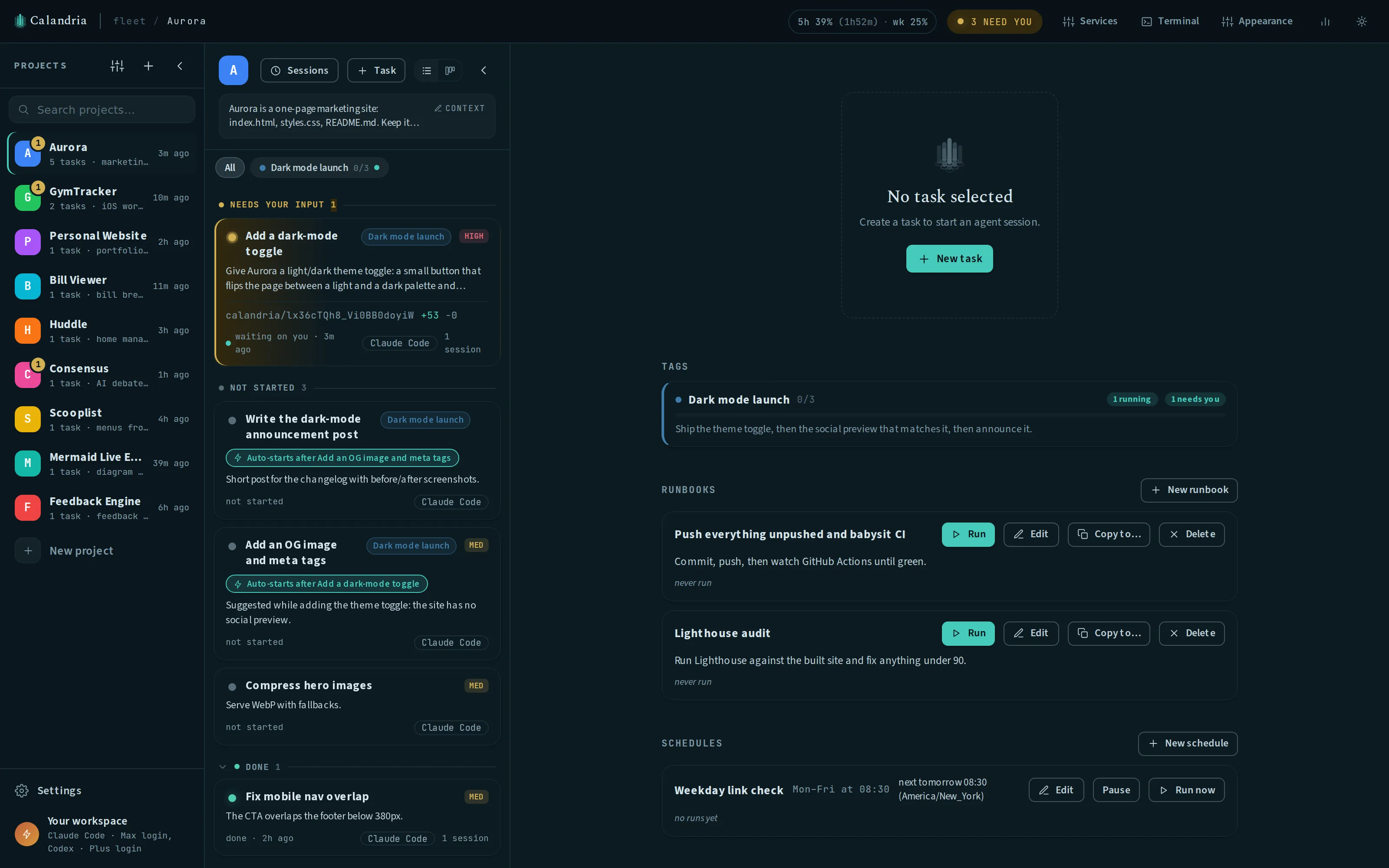
What it is: a saved task-launch preset: a name, a one-line description, the prompt its first turn sends, and the agent, permission mode, priority, and context setting to run it under. Useful for a recurring brief like “push unpushed changes and babysit CI/CD” instead of retyping the same prompt every time.
How to use it:
- Click the project’s name at the top of the task list to reach the project landing page, where Runbooks sits above Schedules.
- Click Run on a runbook to mint a fresh task and launch its first turn immediately, the same way a schedule firing does. Because a runbook’s dispatch is attended, its turn can stop and ask you a permission question; a scheduled firing of the same recipe declines automatically instead, since nobody is there to answer.
- Fill in Instructions for this run, an optional box appended to the saved prompt at dispatch time, for one-off additions like “…and focus on CEAP-1234.” If the recipe is a slash command, the extra text becomes part of that command’s arguments.
- Use Copy to… to duplicate a recipe into another project as an independent row, since projects have different repos, agents, and command registries.
- Find any runbook in the current project through ⌘K (behind the
omniSearchfeature flag, off by default; setCALANDRIA_FEATURE_OMNI_SEARCH=1to turn it on) as its own row, for example “Run: Push & babysit CI,” which dispatches it immediately instead of opening the sheet. The card works either way.
| Setting | Default | Effect |
|---|---|---|
CALANDRIA_FEATURE_OMNI_SEARCH | off (set =1 to enable) | Enables runbook rows in the ⌘K command palette. |
What it does not do:
- Everything a runbook runs with is decided when you save it and copied onto the task at dispatch time, so editing the recipe tomorrow does not change what already ran today.
- There is no separate run history. “Last run” is a link to the most recent task the runbook created.
- The prompt is validated against the project’s real slash-command registry before you save (the same check the schedules editor runs), with one-click suggestions, but it never blocks saving.
Schedules that fire a runbook
What it is: a schedule that takes its prompt and config from a linked runbook at fire time instead of storing its own copy, so a recurring procedure like “the morning sweep” stays defined in one place.
How to use it: in the schedule editor, name the linked runbook. It warns that editing the runbook changes what the schedule fires, and the runbook’s own row lists which schedules feed from it.
What it does not do:
- Deleting a linked runbook does not break the schedule: the recipe is copied back into the schedule’s own columns in the same transaction as the delete, so it keeps firing exactly what it fired yesterday.
- A link across projects is refused, both at save time and at fire time, since a runbook is written against one repository’s commands.
Agents can write runbooks
What it is: the tools that let an agent save a procedure it worked out with you as a runbook.
How to use it: create_runbook, list_runbooks, and update_runbook are available to
every task session. An agent-created recipe is tagged with which agent filed it and sits inert,
like any other runbook, until you dispatch it. create_runbook also takes the coding
environment, provider and model the dispatched tasks run on, checked before the row is saved: a
model the environment does not run is refused with nothing created, so a saved recipe cannot mint
tasks that fail on their first turn.
What it does not do:
- An agent cannot delete a runbook. Delete is hard delete with no undo throughout Calandria; retiring a recipe is your call.
- An agent cannot edit a runbook that a schedule fires. The refusal names the schedules involved, so it can tell you what it would have changed, or save a new recipe instead.
Scheduled tasks
What it is: a saved prompt plus a day and time, owned by the project it lives in, that mints and launches a task on its own with no browser tab open.
How to use it:
- Click the project’s name at the top of the task list to reach Schedules on the project landing page.
- Use Edit, Pause, Run now, and Delete on any schedule. Deleting removes only the schedule; tasks it already minted are kept.
- Choose Repeats: Weekly and pick days, or Repeats: Once and pick a single date, for example “there’s a release going out overnight, check on it at 04:00.” A one-time schedule fires once, then stays on its card reading Ran, one-time, disabled, with its run history intact; delete it or edit it to a later date to arm it again. A past date is refused on save.
- Pick a Timezone explicitly (it defaults to your browser’s), since the server may run in a different zone than you. The time is wall-clock, so “08:30” keeps meaning 08:30 across a Daylight Saving transition. The editor previews the next three occurrences (or the single one, for a one-off) as you set days, time, and timezone.
- Choose a permission mode. This is a required, explicit choice, because a scheduled run cannot answer a permission prompt: any mode that would ask you (Claude’s auto, acceptEdits, default and plan; Codex’s default) declines every prompt automatically instead of parking, so the turn can stop early with the job half done. Only a mode that never asks you runs a schedule all the way through unattended: bypassPermissions on either agent, and on Codex also acceptEdits (the sandbox refuses instead of asking) and auto (Codex’s own reviewer decides escalations). If the agent asks a question mid-run instead, it is declined immediately and the question is preserved in the transcript.
Each firing mints a fresh task with its own transcript, worktree, and turn instead of reusing one across occurrences, so every run is reviewable like a task you started by hand.
If the app was asleep or down when a firing was due, the next tick runs the most recent missed
slot once, marked catch_up; anything older is recorded missed. If the previous firing’s turn
is still running when the next one comes due, the new slot is recorded skipped_overlap instead
of piling a second turn on top of the first.
A firing that finishes the job is not waiting on an answer, so it rests in its own state, Ran clean, with its own group in the task list and its own board column, until you click Mark done or reply to it (which moves it back to In progress). If a prompt gets declined, the run is recorded failed, with a note that the agent needed approval and nobody was watching. The schedule card also watches the ticker itself: if the scheduler stops running or its sweeps stop completing, a banner says so instead of showing a next-run time that will never arrive.
What it does not do:
- A prompt like
/jira-tasksis expanded by the CLI before the model sees it, and an unrecognized command is not treated as an error by the CLI itself (it answers “Unknown command: /x” as a success, with no tool calls). The editor checks the prompt against the project’s real command registry before you save, showing one-click suggestions on a failure; the same check runs again when the schedule fires, and an unknown command there records the run failed and creates no task. A prompt that merely starts with a filesystem path, like/etc/passwd, tell me what's in it, is read as an ordinary prompt, not a command. - This check never blocks saving: it only reads one session’s live command list, so a
conditionally registered command can read as unknown at save time and still work when the
schedule fires. The reverse also happens: a command removed between the two checks fails
loudly at fire time instead of reporting a success it did not earn. It also cannot verify an
MCP server’s
/mcp__server__prompt, since checking that would mean spawning your whole server fleet; such a prompt saves with a note and runs anyway.
Notifications
What it is: an alert whenever a task stops and needs you, or moves on its own while you are away, over a browser notification, push to a subscribed device, or both.
| Notification | When it fires |
|---|---|
| A task is waiting for input | An agent asked a question, needs a tool approved, or finished its turn without finishing the job. |
| A turn failed | The session died: a dead login, a spent quota, a full context window, or a crash. |
| A scheduled run failed | A schedule fired and got nowhere, with nobody watching to see it fail. |
| A queued start fired | A task queued for the usage-window reset started or resumed on its own. See Starting at the usage-window reset. |
| A queued start was skipped | The reset came and the task launched nothing: a turn was already running, another task still blocks it, or the project has no working directory. |
How to use it:
- Open Settings → Notifications.
- Click Enable browser notifications to grant the browser’s notification permission. This channel needs the app open in a tab (any tab, any window); Calandria stays quiet only when the tab is visible and you already have that exact task selected.
- Click Enable push on this device to subscribe it to push notifications, which need nothing open at all: your device hears “a task needs you” with Calandria closed, and tapping it opens the app at that task. On iPhone and iPad, push only works for an app added to the Home Screen (see Install as an app); the subscribe button says so. Every subscribed device is listed here with a Remove button.
- Click Send test notification to send one through the same path a real notification takes, including the push to every subscribed device, so you can check the wiring without waiting for a task to stall.
The instance signs its pushes with a VAPID key it mints on first use and stores beside the
database (<CALANDRIA_DB_DIR>/vapid.json); back it up with the database, since subscriptions are
bound to it.
| Setting | Default | Effect |
|---|---|---|
VAPID_SUBJECT | PUBLIC_BASE_URL if it is https:, else mailto:admin@localhost | The contact address push services see for this instance. |
VAPID_PRIVATE_KEY | generated on first use | The instance’s push signing key. |
For push to work on iPhone or iPad, set VAPID_SUBJECT (or PUBLIC_BASE_URL) to a real
https: origin or mailto: address: Apple’s push service rejects the default
mailto:admin@localhost with 403 BadJwtToken, shown in the device list as failing (403).
Chrome, Android, and Firefox accept the default.
Notifications are composed on the server: the tab and the push service receive the same message from the same source.
What it does not do:
- Finishing a turn cleanly is not itself a notification, and neither is a new suggestion. A scheduled run that finished the job, a task you already closed, and a snoozed task all stay quiet, and so does a task in an archived project (both still report a failure, though).
- A device with both channels enabled sees one notification, not two.
On a narrow window
What it is: a layout that gives up the least-used side column first, instead of shrinking the transcript pane you are actually reading.
How it works: the three columns beside the transcript are fixed-width, and only the transcript flexes: projects 236px, tasks 352px, and the DIFF / PREVIEW / CONTEXT rail 430px. Below certain widths the shell collapses a side column into a 30px spine instead: projects below 1400px, tasks below 1200px, the rail below 880px. Click the spine to restore a collapsed column.
What it does not do:
- This is a render-time response to window size, not a saved setting. Your own column widths and collapsed state are untouched, and widening the window gives them straight back. Opening a column from its spine overrides the automatic collapse only until the window is resized again.
On a phone
What it is: a single-pane layout with a bottom tab bar, below 760px wide.
How to use it:
- Switch between Board, Services, Terminals, and Insights using the tab bar. The device Back button walks panes back out.


- On the Board tab, drill down through projects → tasks → session, plus a fourth level, the
project home screen, reached by tapping the project’s name in the task list’s header. It holds
the “where you left off” recap, the Tags card, Runbooks, and
Scheduled tasks: everything project-level that the session pane shows in
place of an unselected task on desktop. The home screen is a real route (
?home=1), so a reload or a shared link lands back on it, and Back returns to the task list. - Use the terminal as a full-screen sheet with its own font sizing and a Paste / Ctrl-C / Enter key row, on its own tab, instead of desktop’s bottom drawer.
- Run a project’s managed services from the Services tab, the phone’s form of desktop’s Services drawer. It lists the project’s dev, setup and test commands with a status dot and a Start / Stop button on each card; tapping a card opens that service’s live log full-screen, with Restart, the service URL, a copy-link button and the visibility picker in its header. The tab is project-scoped, so it works from the task list and from inside a session alike.
What it does not do:
- A backgrounded, closed terminal does not stay alive. If the page goes to the background while the terminal sheet is closed, its shell, xterm buffer, and WebSocket are torn down; reopening the sheet spawns a fresh one. A sheet left open on screen is not affected.
- The ⌘K command palette is desktop-only, since there is no keyboard to summon it with.
- The desktop Services drawer itself stays desktop-only: it lays its service list beside its log pane and resizes by a mouse drag, neither of which fits a 390px screen. The Services tab is the phone’s surface for the same processes, over the same stream and the same routes.
- There is no Diffs tab. A task’s changes are one tap away inside the session, on the Chat / Changes switch in its header, and that switch is the only place changes live on a phone.
Install as an app
What it is: Calandria is an installable Progressive Web App, so it can run as its own window with its own icon instead of a browser tab.
How to use it:
- In Chrome or Edge, use Install app from the address bar.
- On iOS, use Safari’s Share → Add to Home Screen.
Installed, it gets its own icon, its own standalone window with no browser chrome, and its own entry in the app switcher.
What it does not do:
- Install requires a secure context, the same rule the Notification permission follows: it works
over HTTPS or on
localhost/127.0.0.1only. A tunnel such as Cloudflare Access is already HTTPS; a raw LAN IP over plain HTTP gets neither install nor notifications. - Behind Cloudflare Access, the manifest is fetched with your session cookie, so install from the same browser profile you log in with. The standalone window shares that profile’s cookies, so an existing session carries over; when it expires, the window shows the Access login and continues normally.
- A service worker (
public/sw.js) handles Web Push, registered only once a device subscribes (see Notifications). It has no fetch handler and no offline mode, since everything on screen is live server state. Install itself does not require the service worker to be registered. - The desktop app never subscribes itself to push; it raises the same notifications natively, so its Settings say so and withhold the push button, while still listing (and letting you remove) phones subscribed elsewhere.
Settings → Diagnostics keeps a page-lifecycle log (visibility, focus, freeze/resume, heartbeat gaps) for tracking down an installed app that comes back from the background unresponsive, and a per-device “Reload after a long background” setting for iOS. See iOS home-screen app comes back frozen in the troubleshooting guide.
Reporting a bug without leaving the session
When you hit something broken in Calandria, or say a feature would help, the agent is told to notice and offer to write it up. What appears is a card in the transcript, right where you said it: a title and body you can edit, the repository it would go to, and any existing issues that look like the same thing.
Nothing has been filed when that card appears. The tool drafts and searches; the only thing that leaves the machine is the duplicate lookup, which is a read. Filing happens when you press a button, and you get two: File new issue, or Add to #N against one of the matches, so a second report of a known problem lands as a comment on the existing thread instead of another duplicate. Dismiss drops the draft.
The text is editable because it becomes a public issue under your GitHub account, and approving a
model’s paraphrase wholesale is not the same as writing it yourself. If GitHub isn’t connected the
card says so and keeps the draft, so connecting gh and pressing the same button again still
works: a dead CLI costs you the send, never the report.
Reports go to calandria-dev/calandria by default. Self-hosters can point
CALANDRIA_ISSUE_REPO at their own fork, or set it to off to remove the tool entirely; see
Self-hosting. This is for Calandria itself: work on your own project is what
the Suggested tray and suggest_task are for.
Workspace tools
What it is: an integrated terminal and managed dev/test services for each project, so you can poke at a task’s changes without leaving the app.
How to use it:
- Open the terminal drawer. It opens in the project’s working directory by default.
- Use the Project/Task toggle in the drawer’s bar to re-root the shell in the selected task’s git worktree instead, so you can run tests against a task’s changes before merging.
- Use managed
dev,setup, andtestservices, which keep running after an agent turn or browser tab ends, with live logs and stable per-project ports. - Expose a service on its own hostname with private, shared-link, or public visibility.
See Managed services for setup and security details.
Keyboard shortcuts
What it is: single-key navigation through a project’s tasks on desktop, in both the list and the board.
| Key | Action |
|---|---|
j / k | Move to the next or previous task card, in on-screen order. In the list this also opens the task. |
enter | Open the focused or selected task. On the board this opens the slide-over session panel. |
t | Open the terminal drawer. |
d | Open the focused or selected task on its DIFF tab, expanding the side rail if it is hidden. |
n | Open the New task dialog. |
⌘K / Ctrl+K | Open the command palette (behind the omniSearch feature flag). |
⌘⇧B / Ctrl+Shift+B | Toggle list and board. |
Escape | Close the board’s session panel. |
The single keys do nothing while you type in a text field, the prompt composer, a document editor or the terminal, while a modifier key is held, or while a dialog or the command palette is open.
Transparent usage
What it is: token and cost accounting for every task and every background job.
How to use it: open the Insights dashboard to see activity broken down by day, project, and agent, with Calandria’s own background work kept separate from task usage. Subscription users see an API-price equivalent for context, not a bill.
See Insights and usage for how to read the numbers.
External MCP endpoint
What it is: an MCP server at <instance base URL>/api/mcp that gives agents running
outside Calandria (a Claude Code session in another repo, a script, another machine) the
same task tools Calandria’s own sessions use. It speaks MCP Streamable HTTP, stateless, with
JSON responses. It is off until you set CALANDRIA_MCP_TOKEN.
How to use it: set the token as described in
Exposing the MCP endpoint, then register the
endpoint with your client. Every request sends Authorization: Bearer <token>.
Claude Code:
claude mcp add --transport http calandria https://calandria.example.com/api/mcp \ --header "Authorization: Bearer $CALANDRIA_MCP_TOKEN"To keep the token out of ~/.claude.json, point the server’s headersHelper at a script that
prints {"Authorization":"Bearer <token>"}. Claude Code runs the helper through /bin/sh with a
scrubbed environment on every connection attempt, so the script cannot rely on variables your
login shell exports (a 1Password OP_SERVICE_ACCOUNT_TOKEN, for example) or on your PATH. Read
the token from a file the helper can reach, and exit non-zero when it finds none. A helper that
prints an empty Bearer instead connects as a 401 on every session start:
#!/usr/bin/env bashset -euo pipefailtok="$(sed -n 's/^CALANDRIA_MCP_TOKEN=//p' "$HOME/.config/calandria/mcp.env")"[ -n "$tok" ] || { echo "no CALANDRIA_MCP_TOKEN" >&2; exit 1; }printf '{"Authorization":"Bearer %s"}' "$tok"Generic .mcp.json:
{"mcpServers":{"calandria":{"type":"http","url":"https://calandria.example.com/api/mcp","headers":{"Authorization":"Bearer <token>"}}}}Codex, in ~/.codex/config.toml:
[mcp_servers.calandria]url = "https://calandria.example.com/api/mcp"bearer_token_env_var = "CALANDRIA_MCP_TOKEN"The endpoint serves these tools:
| Tool | Required parameters |
|---|---|
list_projects, list_providers | none |
list_tasks, list_tags, list_runbooks | project |
get_task, update_task | task |
suggest_task | project, title, description |
update_tag | project, tag |
create_runbook | project, name, description, prompt |
update_runbook | runbook |
withdraw_suggestion | task, reason |
move_task | tasks, project |
An external client has no project or task of its own, so every project parameter is
required and an omitted one is refused. attachments is not available. The tools that act
on a running session (ask_user, expose_service, create_pr, set_base_branch,
report_base_rewrite, report_issue, and the environment-setting tools) are not offered.
Writes are attributed to “External MCP client”. A suggestion lands in the target project’s Suggested tray. An edit to a task you already accepted shows the same “Changed by agent” chip and per-edit Revert as an edit from inside a session.
External clients cannot change a task’s title, description, tags, or blockers while
automatic start is enabled through a dependency or a deferred start time. Those tasks
cannot be moved externally while queued for automatic launch. Tag names
and descriptions cannot change externally while a member has automatic start enabled.
Completing or withdrawing a blocker through external MCP clears its dependents’
auto-start flags and deferred start times, and records those changes for review. Start those tasks manually or restore the flags after reviewing their prompts.
External runbooks use default or plan permission mode. External clients cannot change
a tag’s base branch.
Agent edits to runbooks show the same diff and Revert controls. The first dispatch after an agent edit requires confirmation of the current recipe. Agent-created recipes also require confirmation before their first dispatch. Acknowledging the edit clears the chip and keeps that confirmation requirement. Scheduled dispatch refuses an unreviewed agent recipe.
Agent connections
What it is: Settings → Models separates coding environments from model providers. Claude Code, OpenAI Codex, and Google’s Antigravity are the environments that run tasks. Providers hold an endpoint, a credential, and a model policy. Signing in to an environment adds its bundled provider.
How to use it:
- Connect one or more environments under Environments. Calandria detects an expired connection, preserves any queued follow-ups, and offers a reconnect action.
- Add LiteLLM, Ollama, LM Studio, and custom providers under Providers. Calandria shows each provider only in environments that can route through it.
- Background jobs pick a connected environment automatically, so an installation with only one of the three connected works with no extra configuration.
- Pin a specific model per environment, for example a small model for short summarizing jobs and a stronger one for a draft that reads your whole repository.
- Pick models by family, version, and provider source.
lib/providers/families.tsplaces model ids from every provider into the shared family and version structure. - LiteLLM uses an allowlist. Turn on the models you want to expose. Every other provider type exposes its catalog by default and lets you turn models off.
Settings → Models calls each coding CLI an environment. Some task editors still label it Agent.
The API keeps the field name agent.
See Supported agents for capabilities and upstream limitations.
Routing through a LiteLLM gateway
What it is: a LiteLLM provider routes Claude Code, Codex, or Antigravity through a self-hosted LiteLLM proxy. It adds a model catalog with context windows and prices, per-task spend attribution, and budgets.
How to use it:
- Open Settings → Models, select Add provider, choose LiteLLM gateway, enter the endpoint and key, test the connection, and turn on the models you want to expose.
- Choose that provider and a model in the project or task model picker.
- To mount one of the gateway’s hosted MCP servers on every task in the project, pick it from the project’s settings. Click Trust this server to skip its permission prompts, or leave it untrusted to approve each call.
A Claude Code project can bill gateway turns to a shared key or forward its subscription login. Codex and Antigravity gateway turns always use the gateway key.
See Supported agents for setup and current provider coverage.
Work Center
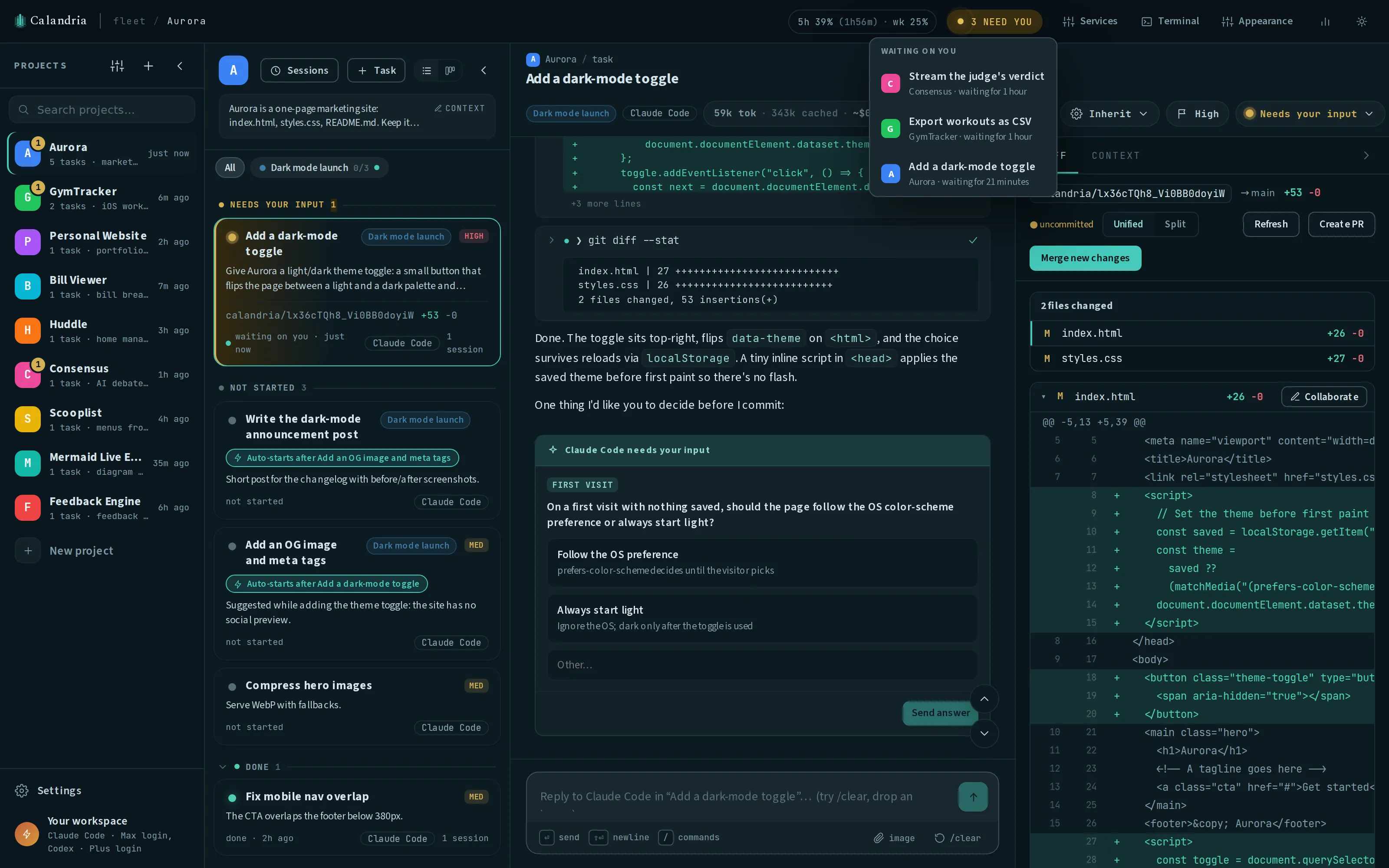
The titlebar pill shows two counts: tasks that are working (a ripple icon) and tasks that need you (a speech bubble). Click it, or press Enter on it, to open the Work Center. A task appears once: Needs you wins over Working, and Working wins over Waiting. The sections stack Working first, then Needs you, Waiting and Recently finished, which lists the last results four at a time. Click a section header to collapse it; the choice persists across reloads.
| What you see | Meaning |
|---|---|
— | The first snapshot has not arrived. |
3+ | Three are known and the total is unknown, because a source could not be read. |
0 | A real zero. |
| Dashed border with a clock | The numbers are the last good ones; the last fetch failed or the live feed is down. |
A row shows one chip per reason it needs you (permission, question, turn failed, base rewritten, CI failing, settings proposal, agent edit, turn finished). A chip opens the exact card in the task’s session, and Back returns to the Work Center on the same row. On desktop a permission request that offers only Allow once and Deny has both buttons inline, an agent edit or a finished turn has Acknowledge, and every row has Snooze (1 hour, until tomorrow, or until Monday). A snoozed task leaves the list and every count until its deadline. On a phone, Work is the fourth tab (Board, Services, Terminals, Work, Insights) with a needs-you badge, and each row’s menu opens an action sheet.
What counts
- Working: a task whose agent is executing right now, or that has a background command or subagent running. A task that is quiet for a long time still counts. A task that is only sleeping until a wakeup, queued, held, waiting on another task, or marked in progress with no live session is under Waiting, with the reason on its row.
- Needs you: a task with at least one open item that only you can resolve: a question, a permission request, a failed turn, a rewritten base branch, failing CI on its open pull request, a settings change proposal, an agent edit you have not acknowledged, or a finished turn waiting on your next message. A task counts once however many items it has, and the pill counts tasks, not items. A task that is done or cancelled still counts while its pull request has failing CI. A scheduled run that finished cleanly is a recent result, not an item. A finished interactive turn is listed until you acknowledge it, send the task a message, or mark it done. All of a task’s applied agent edits share one item, and one Acknowledge on a row clears its edits and its finished turn together. An edit an agent has already applied is listed until you acknowledge or revert it, or the task is done or cancelled. The task card keeps the edit’s diff and Revert after that. A change an agent has only proposed is a permission-style request until you allow or deny it.
- Recently finished: the latest result for each task in the last seven days. A result from before Calandria recorded outcomes shows as an unknown result.
- Snoozed: a snoozed task is hidden from the Work Center and from every count until its
deadline: the pill, the phone Work tab badge, each project badge and the desktop badge all show
the same number. When every open item is snoozed the count is
0. If a source cannot be read while some items are snoozed, the count showsN+for the items that are known and visible.
Reviews: an agent can submit its code or one Markdown document for your decision. The row shows a
“decide review” chip and the task gets a REVIEW tab. You accept, request changes with feedback the agent
receives as its next message, or waive a required review with a reason. Accept does not merge: land it
from the Diff tab, after which the task can be completed. A required review blocks marking the task done,
even while it is snoozed. Creation is off until CALANDRIA_REVIEW_REQUESTS=1; see
Review submissions for enabling, backup and rollback.
Keyboard: ↑ and ↓ move between rows, Enter opens a row’s card, → walks its chips and buttons, S opens Snooze, and Esc closes the menu, then the popover, and returns focus to the pill.